6.1. Secure Your Application with Self-Signed SSL Certificate
Goal
Add HTTPS encryption to your Nginx reverse proxy using a self-signed SSL certificate. This tutorial builds on your existing HTTP setup to provide encrypted communication between browsers and your server.
What you’ll learn:
- How SSL/TLS certificates provide encryption
- The difference between encryption and trust (why browsers show warnings)
- How to generate self-signed certificates with OpenSSL
- How to configure Nginx for HTTPS with modern TLS settings
- How to add security headers for defense in depth
Prerequisites
Before starting, ensure you have:
- ✓ Completed “Secure Your Application with Nginx Reverse Proxy” tutorial
- ✓ Nginx running as reverse proxy on port 80
- ✓ Application bound to localhost:8080
- ✓ SSH access to your Azure VM
- ✓ Application accessible via
http://<YOUR_PUBLIC_IP>/
Exercise Steps
Overview
- Understand SSL/TLS and Self-Signed Certificates
- Generate Self-Signed SSL Certificate
- Configure Nginx for HTTPS
- Update Azure Network Security Group
- Test and Verify SSL Configuration
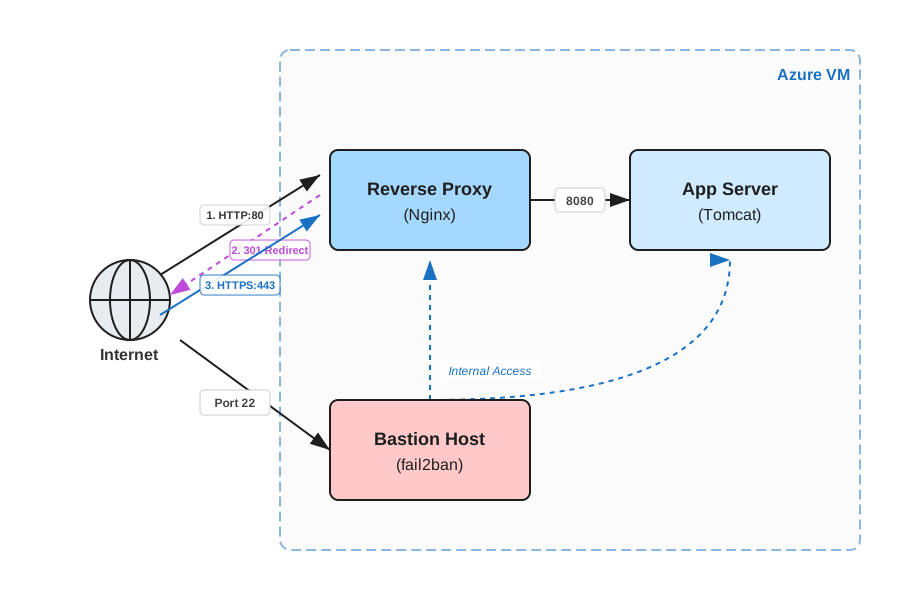
Reverse Proxy Architecture
Step 1: Understand SSL/TLS and Self-Signed Certificates
Before implementing SSL, understand what certificates do and why we’re using a self-signed certificate for learning.
ℹ Concept Deep Dive
What is SSL/TLS?
SSL (Secure Sockets Layer) and its successor TLS (Transport Layer Security) encrypt communication between browsers and servers. When you see
https://and the padlock icon, your connection is encrypted.What do certificates provide?
SSL certificates provide two things:
- Encryption - Data is scrambled during transit (protection from eavesdropping)
- Identity verification - Proof that the server is who it claims to be (trust)
Self-signed vs. CA-signed certificates:
Type Encryption Trust Browser Warning Cost Use Case Self-signed ✓ Yes ✗ No Yes Free Development, learning CA-signed (Let’s Encrypt) ✓ Yes ✓ Yes No Free Production CA-signed (Commercial) ✓ Yes ✓ Yes No Paid Enterprise Why self-signed for this tutorial?
- Learn certificate concepts without external dependencies
- Understand what Let’s Encrypt automates
- Experience browser warnings firsthand
- Practice Nginx SSL configuration
The browser warning explained:
When you access a site with a self-signed certificate, the browser warns:
“Your connection is not private”
This happens because you signed the certificate yourself - you’re not a trusted Certificate Authority. The data IS encrypted, but the browser can’t verify the server’s identity. This is expected and educational.
✓ Quick check: You understand that self-signed certificates provide encryption but not trust
Step 2: Generate Self-Signed SSL Certificate
Create a self-signed SSL certificate using OpenSSL. The certificate will include your VM’s public IP address as the Common Name and Subject Alternative Name.
SSH into your Azure VM:
ssh azureuser@<YOUR_PUBLIC_IP>Install OpenSSL (usually pre-installed on Ubuntu):
sudo apt update
sudo apt install -y openssl
Verify OpenSSL installation:
openssl versionShould show:
OpenSSL 3.x.xor similarCreate SSL directories (if they don’t exist):
sudo mkdir -p /etc/ssl/certs
sudo mkdir -p /etc/ssl/private
Generate the self-signed certificate:
Replace
<YOUR_PUBLIC_IP>with your actual VM IP address:sudo openssl req -x509 -newkey rsa:2048 -nodes \ -keyout /etc/ssl/private/hellojava.key \ -out /etc/ssl/certs/hellojava.crt \ -days 365 \ -subj "/C=SE/ST=Stockholm/L=Stockholm/O=HelloJava/OU=Development/CN=<YOUR_PUBLIC_IP>" \ -addext "subjectAltName=IP:<YOUR_PUBLIC_IP>"Set correct file permissions:
# Private key - only root should read
sudo chmod 600 /etc/ssl/private/hellojava.key
sudo chown root:root /etc/ssl/private/hellojava.key

# Certificate - can be world-readable
sudo chmod 644 /etc/ssl/certs/hellojava.crt
sudo chown root:root /etc/ssl/certs/hellojava.crt
Verify the certificate was created:
sudo ls -la /etc/ssl/private/hellojava.key
sudo ls -la /etc/ssl/certs/hellojava.crt
View certificate details:
openssl x509 -in /etc/ssl/certs/hellojava.crt -noout -text | head -30Look for your IP address in the Subject and Subject Alternative Name fields
ℹ Concept Deep Dive
OpenSSL command breakdown:
req -x509- Generate a self-signed certificate (not a certificate signing request)-newkey rsa:2048- Create a new 2048-bit RSA key pair-nodes- Don’t encrypt the private key with a passphrase-keyout- Where to save the private key-out- Where to save the certificate-days 365- Certificate validity period (1 year)-subj- Certificate subject (organization details)-addext "subjectAltName=IP:..."- Required for modern browsersSubject fields explained:
C- Country (SE = Sweden)ST- State/ProvinceL- Locality/CityO- OrganizationOU- Organizational UnitCN- Common Name (the IP address or domain)Why Subject Alternative Name (SAN)?
Modern browsers require SAN for IP addresses. Without it, you’ll get
ERR_CERT_COMMON_NAME_INVALID. The-addextparameter adds the IP as a valid subject alternative name.Private key security:
The private key (
hellojava.key) must be kept secret. Anyone with access can:
- Decrypt your traffic
- Impersonate your server
That’s why we set permissions to 600 (only root can read).
⚠ Common Mistakes
- Forgetting to replace
<YOUR_PUBLIC_IP>with actual IP address- Using localhost or 127.0.0.1 instead of public IP
- Making private key world-readable (should be 600, not 644)
- Missing the
-addextparameter causes browser errors- Typo in file paths causes Nginx to fail
✓ Quick check: Both files exist with correct permissions (key: 600, cert: 644)
Step 3: Configure Nginx for HTTPS
Configure Nginx to serve HTTPS on port 443 and redirect HTTP to HTTPS. We’ll use Nginx snippets to organize the SSL configuration into reusable files - this is a best practice that keeps your main site configuration clean and makes SSL settings easy to maintain.
Create the snippets directory (if it doesn’t exist):
sudo mkdir -p /etc/nginx/snippetsCreate the SSL certificate snippet:
sudo nano /etc/nginx/snippets/ssl-certificate-hellojava.confAdd the certificate paths:
# SSL certificate paths for HelloJava
ssl_certificate /etc/ssl/certs/hellojava.crt;
ssl_certificate_key /etc/ssl/private/hellojava.key;
Save and exit (Ctrl+X, then Y, then Enter)
Create the SSL parameters snippet:
sudo nano /etc/nginx/snippets/ssl-params.confAdd the SSL parameters:
# Modern SSL/TLS configuration
# Based on Mozilla SSL Configuration Generator

# Protocols - only TLS 1.2 and 1.3
ssl_protocols TLSv1.2 TLSv1.3;

# Cipher suites - strong ciphers only
ssl_ciphers 'ECDHE-ECDSA-AES128-GCM-SHA256:ECDHE-RSA-AES128-GCM-SHA256:ECDHE-ECDSA-AES256-GCM-SHA384:ECDHE-RSA-AES256-GCM-SHA384:ECDHE-ECDSA-CHACHA20-POLY1305:ECDHE-RSA-CHACHA20-POLY1305:DHE-RSA-AES128-GCM-SHA256:DHE-RSA-AES256-GCM-SHA384';
ssl_prefer_server_ciphers off;

# SSL session optimization
ssl_session_cache shared:SSL:10m;
ssl_session_timeout 10m;
ssl_session_tickets off;

# Security headers
add_header Strict-Transport-Security "max-age=31536000; includeSubDomains" always;
add_header X-Frame-Options "SAMEORIGIN" always;
add_header X-Content-Type-Options "nosniff" always;
add_header X-XSS-Protection "1; mode=block" always;
Save and exit
Open the main Nginx site configuration:
sudo nano /etc/nginx/sites-available/hellojavaReplace the entire contents with the following:
# HTTPS server block (port 443)
server {
    listen 443 ssl;
    listen [::]:443 ssl;

    server_name _;

    # Include SSL configuration snippets
    include /etc/nginx/snippets/ssl-certificate-hellojava.conf;
    include /etc/nginx/snippets/ssl-params.conf;

    # Proxy to Java application on localhost
    location / {
        proxy_pass http://127.0.0.1:8080;
        proxy_set_header Host $host;
        proxy_set_header X-Real-IP $remote_addr;
        proxy_set_header X-Forwarded-For $proxy_add_x_forwarded_for;
        proxy_set_header X-Forwarded-Proto $scheme;
        proxy_set_header X-Forwarded-Port $server_port;

        # Timeouts
        proxy_connect_timeout 60s;
        proxy_send_timeout 60s;
        proxy_read_timeout 60s;
    }

    # Health check endpoint (no logging)
    location /actuator/health {
        access_log off;
        proxy_pass http://127.0.0.1:8080/actuator/health;
    }
}

# HTTP server block (port 80) - Redirect to HTTPS
server {
    listen 80;
    listen [::]:80;

    server_name _;

    return 301 https://$host$request_uri;
}
Save and exit
Test Nginx configuration:
sudo nginx -tShould show:
syntax is okandtest is successfulReload Nginx to apply changes:
sudo systemctl reload nginxVerify Nginx is running:
sudo systemctl status nginx
ℹ Concept Deep Dive
Why use snippets?
Nginx snippets are reusable configuration fragments. By separating SSL settings into snippets:
- Main config stays clean - Only 2 include lines instead of 20+ SSL directives
- Easy to maintain - Update cipher settings in one place for all sites
- Reduces errors - No copy-paste mistakes in complex cipher strings
- Industry best practice - How production Nginx servers are configured
The two snippets explained:
ssl-certificate-hellojava.conf- Site-specific certificate paths (changes per site)ssl-params.conf- Reusable SSL settings (same for all sites)Security headers explained:
- Strict-Transport-Security (HSTS) - Forces HTTPS for 1 year
- X-Frame-Options - Prevents clickjacking attacks
- X-Content-Type-Options - Prevents MIME-type sniffing
- X-XSS-Protection - Enables browser XSS filtering
HTTP to HTTPS redirect:
The port 80 server block catches all HTTP traffic and returns a 301 redirect to HTTPS, ensuring encrypted connections even when users type
http://.⚠ Common Mistakes
- Typo in snippet file paths causes “file not found” errors
- Missing semicolons in snippets cause syntax errors
- Forgetting to create both snippet files
- Not running
nginx -tbefore reload can break the server✓ Quick check:
nginx -tsucceeds, Nginx reloads without errors
Step 4: Update Azure Network Security Group
Open port 443 (HTTPS) in the Azure Network Security Group to allow encrypted traffic.
Open Azure Portal and navigate to your VM
Go to Networking: Left menu → “Networking” → “Network settings”
Add rule for port 443:
- Click “Create port rule” → “Inbound port rule”
- Destination port ranges:
443 - Protocol: TCP
- Action: Allow
- Priority: 310
- Name:
Allow-HTTPS-443 - Click “Add”
Alternative: Command line
az vm open-port \
  --resource-group <YOUR_RESOURCE_GROUP> \
  --name <YOUR_VM_NAME> \
  --port 443 \
  --priority 310
Verify final NSG rules:
You should have:
- ☐ SSH (22) - Allow
- ☐ HTTP (80) - Allow (for redirect)
- ☐ HTTPS (443) - Allow
Wait for propagation (up to 60 seconds)
ℹ Concept Deep Dive
Why keep port 80 open?
Port 80 handles HTTP to HTTPS redirects. If someone types
http://yoursite.com, they get redirected tohttps://yoursite.com. Without port 80, these users would see “Connection refused.”Alternative: Close port 80
Some security policies require closing port 80 entirely. This forces HTTPS-only but breaks users who don’t type
https://. For this tutorial, we keep it open for better user experience.Priority ordering:
We use priority 310 for HTTPS, keeping it close to HTTP (300) for logical grouping. NSG rules are evaluated in priority order (lower numbers first).
⚠ Common Mistakes
- Forgetting to add port 443 means HTTPS won’t work externally
- Using wrong protocol (UDP instead of TCP)
- Setting too high priority (rules with lower priority may block it)
✓ Quick check: Port 443 rule shows as “Allow” in NSG rules list
Step 5: Test and Verify SSL Configuration
Thoroughly test the SSL configuration to ensure encryption is working and the redirect functions correctly.
Test HTTPS access from your browser:
Navigate to:
https://<YOUR_PUBLIC_IP>/You will see a security warning - this is expected for self-signed certificates!
Bypass the browser warning:
- Chrome: Click “Advanced” → “Proceed to
(unsafe)” - Firefox: Click “Advanced” → “Accept the Risk and Continue”
- Safari: Click “Show Details” → “visit this website”
Your application should load normally over HTTPS
- Chrome: Click “Advanced” → “Proceed to
Test HTTP to HTTPS redirect:
Navigate to:
http://<YOUR_PUBLIC_IP>/Should automatically redirect to
https://...Test application endpoints:
https://<YOUR_PUBLIC_IP>/hello?name=SecureShould display: “Hello, Secure!”
Verify from command line:
# Test HTTPS (ignore certificate warning for testing)
curl -k https://<YOUR_PUBLIC_IP>/hello

# Test HTTP redirect
curl -I http://<YOUR_PUBLIC_IP>/
The HTTP test should show
301 Moved PermanentlywithLocation: https://...ℹ About curl -k
The
-k(or--insecure) flag tells curl to accept self-signed certificates. This is specifically for testing - it bypasses certificate verification. Never use-kin production scripts, as it defeats the purpose of SSL/TLS trust verification. Once you have a CA-signed certificate (like from Let’s Encrypt), you won’t need this flag.View certificate details:
echo | openssl s_client -connect <YOUR_PUBLIC_IP>:443 -servername <YOUR_PUBLIC_IP> 2>/dev/null | openssl x509 -noout -text | head -30Check TLS version:
echo | openssl s_client -connect <YOUR_PUBLIC_IP>:443 2>/dev/null | grep "Protocol"Should show:
Protocol : TLSv1.2orTLSv1.3Verify security headers:
curl -k -I https://<YOUR_PUBLIC_IP>/Look for:
Strict-Transport-SecurityX-Frame-OptionsX-Content-Type-Options
Verify port 8080 is still blocked:
curl --max-time 5 http://<YOUR_PUBLIC_IP>:8080/helloShould timeout (expected - direct access is blocked)
✓ Success indicators:
- HTTPS loads (after accepting certificate warning)
- HTTP redirects to HTTPS automatically
- All application endpoints work via HTTPS
- TLS 1.2 or 1.3 is negotiated
- Security headers present in responses
- Port 8080 remains blocked
✓ Final verification checklist:
- ☐ SSL certificate generated with correct IP
- ☐ Nginx configured for HTTPS on port 443
- ☐ HTTP traffic redirects to HTTPS
- ☐ NSG allows port 443
- ☐ Browser shows padlock (with warning) for HTTPS
- ☐ Security headers present
- ☐ Application works correctly over HTTPS
Common Issues
If you encounter problems:
“ERR_SSL_PROTOCOL_ERROR”: Certificate files not found or wrong permissions. Check:
sudo ls -la /etc/ssl/private/hellojava.key
sudo ls -la /etc/ssl/certs/hellojava.crt
“ERR_CERT_COMMON_NAME_INVALID”: Missing Subject Alternative Name. Regenerate certificate with
-addext "subjectAltName=IP:<YOUR_IP>".Nginx won’t start after config change: Syntax error in configuration. Check:
sudo nginx -t
sudo tail -n 50 /var/log/nginx/error.log
HTTP not redirecting to HTTPS: Missing the HTTP server block (port 80). Verify both server blocks are in the configuration.
Can’t connect on port 443: NSG rule not added or not propagated. Check Azure Portal and wait 60 seconds.
Browser shows different warning each time: Certificate may have been regenerated. Clear browser cache or use incognito mode.
“502 Bad Gateway” on HTTPS: Nginx can reach SSL but not the Java app. Verify app is running:
sudo systemctl status hellojava
curl http://127.0.0.1:8080/actuator/health
Summary
You’ve successfully added SSL/TLS encryption to your application:
- ✓ Generated self-signed SSL certificate with OpenSSL
- ✓ Configured Nginx with modern TLS settings
- ✓ Implemented HTTP to HTTPS redirect
- ✓ Added security headers (HSTS, X-Frame-Options, etc.)
- ✓ Opened port 443 in Azure NSG
- ✓ Understood encryption vs. trust concepts
Key takeaway: Self-signed certificates provide encryption but not trust - that’s why browsers show warnings. You’ve learned the manual process that Let’s Encrypt automates. In production, you’ll use Let’s Encrypt or another CA for trusted certificates, but the Nginx SSL configuration remains nearly identical. This foundation prepares you for automated certificate management.
Going Deeper (Optional)
Want to explore more?
- Generate custom Diffie-Hellman parameters (
openssl dhparam -out dhparam.pem 2048) for stronger key exchange with DHE cipher suites - takes 2-5 minutes but improves Perfect Forward Secrecy- Generate a certificate with a longer validity period (3 years)
- Add OCSP stapling for better certificate validation
- Implement Certificate Transparency logging
- Test your SSL configuration at https://www.ssllabs.com/ssltest/ (requires domain name)
- Set up automated certificate renewal with Let’s Encrypt
- Compare TLS 1.2 vs TLS 1.3 handshake performance
Done! 🎉
Excellent work! You’ve implemented SSL/TLS encryption and learned why browsers show warnings for self-signed certificates. Your application now communicates over encrypted HTTPS, and you understand the foundation that production certificate management builds upon. The next tutorial will cover automated certificate management with Let’s Encrypt.
Clean Up
No additional cleanup needed. The SSL certificate and Nginx configuration are part of your running setup.
To completely remove all Azure resources:
az group delete --name hellojava-prod-rg --yes --no-wait
Appendix: Automation Scripts
For automated SSL setup on new VMs, see scripts/06.1-secure-with-self-signed-certificate/ directory.
These scripts automate:
- VM provisioning with cloud-init
- Certificate generation with IP detection
- Nginx SSL configuration
- Complete verification testing
The scripts produce the same result as this manual tutorial but in an automated, repeatable way.